
How to Compress a Video for WhatsApp
By TinyTools Team · · 6 min read

To compress a video for WhatsApp, trim it to the part that matters, scale it down to 720p, and re-encode it at a balanced quality setting before you send it. That combination usually cuts the file to a fraction of its size while still looking sharp on a phone screen, so it sends faster, uses less data and stays under WhatsApp's size limit.
This guide explains why WhatsApp videos come out blurry or refuse to send, and how to prepare a clip yourself so you control the result instead of leaving it to the app.
Why compress a video before sending it on WhatsApp?
Phone cameras record at high resolutions and bitrates, so even a short clip can be tens or hundreds of megabytes. That causes three problems.
WhatsApp has a size limit. Videos over it will not send as normal media. The limit has changed over the years and differs between sending as media and sending as a document, so check WhatsApp's own help pages for the current figure rather than relying on a number you read somewhere.
WhatsApp compresses videos for you, and not gently. When you send a video as normal media, the app shrinks it automatically. You have no say in how, and fine detail, text on screen and fast motion often come out smeared. Compressing it yourself first means you choose the trade-off.
Data costs money. Every megabyte you send is also a megabyte every recipient downloads. On mobile data, and especially in a group with dozens of members, a 200 MB video is a real cost to everyone. A sensibly compressed clip is simply more considerate.
The three things that actually shrink a video
Before using any tool, it helps to know where the savings come from, in order of impact.
1. Length
The size of a video grows with its duration. Cutting a two-minute clip down to the twenty seconds that matter removes most of the file before any compression happens. If your video has a slow start or a long ending, Trim Video first. Our guide on how to trim a video walks through it.
2. Resolution
A 4K video has four times the pixels of 1080p, and 1080p has more than twice the pixels of 720p. On a phone screen in a chat window, 720p almost always looks fine. Dropping resolution is usually the single most effective setting in a compressor, and it looks better than squeezing the quality of a large frame: a sharp 720p video beats a heavily compressed 1080p one of the same size.
3. Quality (bitrate)
This is how many bits each second of video is allowed. Lower means smaller and softer. A balanced setting is the right place to start for sharing.
How to compress a video for WhatsApp with TinyTools
The TinyTools Video Compressor runs in your browser and uses your device's own video hardware, so there is no upload and no queue.
- Add your video. Drag in an MP4, MOV, WebM or MKV file, or tap to choose one from your phone or computer.
- Choose a quality. Pick Balanced for most sharing. High barely changes the picture; Small is for when the size limit matters more than looks.
- Choose a resolution. Select 720p for WhatsApp in most cases. Only sizes smaller than your video are offered, because upscaling adds bytes without adding detail.
- Compress. Your device re-encodes the video. A minute of footage typically takes a few seconds, depending on your hardware.
- Download and send. Compare the original and new sizes, save the file, then attach it in WhatsApp.
If the tool finds that re-encoding would make the file bigger, which happens with videos that were already compressed, it gives you your original back untouched. Lowering the resolution is the one thing that will still save space in that case.
Tips for the best result on WhatsApp
Trim before you compress. Every second you cut is a second you do not have to compress, upload or download.
Use 720p unless detail really matters. For a recording of a whiteboard, a document or small on-screen text, try 1080p at Balanced and compare.
Consider sending as a document when quality is critical. WhatsApp lets you attach a video as a document, which generally avoids its automatic compression. The size limit for documents is different from the one for media, so check the current figure. Pre-compressing still helps, because a smaller file sends faster and costs recipients less data.
Convert iPhone MOV files only if needed. WhatsApp handles iPhone videos, but if a recipient reports that a file will not play, converting it to MP4 usually fixes it. Our guide to converting MOV to MP4 covers that.
Remove the sound if it is not needed. A silent product demo or screen recording does not need its audio track. Remove Audio from Video strips it, although the saving is usually modest since audio is a small share of the file.
Compress once, from the original. Every re-encode loses a little quality. Compressing a video that WhatsApp has already compressed, then sending it again, stacks the losses.
Limits worth knowing
- Browser support. The video tools rely on WebCodecs, which is available in Chrome, Edge, Safari 16.4 and later, and recent Firefox. On iPhone and iPad every browser uses Safari's engine, so updating iOS is what helps if the tool says your browser is not supported.
- File size and memory. The video is held in your device's memory while it is processed. Files up to around 500 MB are usually comfortable on a desktop computer; on a phone, keep to clips of a few minutes.
- Codecs. MP4, MOV, WebM and MKV all work, provided your browser can decode the video inside. If it cannot, the tool tells you instead of failing part-way. Chrome supports the widest range.
- Quality is a trade-off. Any compression loses some detail. At Balanced, fine detail in fast motion softens slightly; that is what buys most of the size saving.
Frequently asked questions
How do I send a long video on WhatsApp without losing quality?
Trim it to what matters, compress it at High or Balanced quality at 720p or 1080p, then send it as a document rather than as media, which generally avoids WhatsApp's own extra compression. Check the current document size limit first.
Why does WhatsApp make my videos blurry?
When you send a video as normal media, WhatsApp compresses it automatically to save bandwidth. That compression is aggressive and you cannot adjust it. Compressing the video yourself first, at a setting you choose, usually gives a cleaner result.
What is the best resolution for WhatsApp videos?
For most clips, 720p. It looks sharp on a phone screen and is far smaller than 1080p or 4K. Use 1080p only if the video contains small text or fine detail people need to read.
Can I compress a video on my phone?
Yes. The compressor runs in your mobile browser, as long as it supports WebCodecs. On a phone, shorter clips of a few minutes work best because the whole video is processed in the device's memory.
Is my video uploaded when I compress it?
- The compression happens on your own device, inside your browser. The video is never sent to a server and is cleared from memory when you close or reload the page.
When your next clip is too big to send, open the Video Compressor, choose Balanced and 720p, and it will be ready for WhatsApp in moments.
Every tool here is free
51 tools for PDFs, images and video, all running in your browser. Create a free account to keep your recent tools on every device.
Keep reading
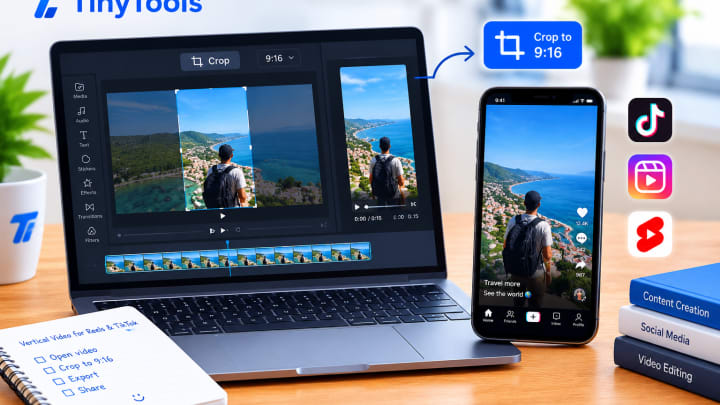 VideoCrop a Video to Vertical for Reels and TikTokCrop a video to vertical 9:16 for Reels, TikTok and Shorts, or to square and 4:5 for feed posts. Free, in your browser, with no upload and no black bars.19 October 2026 · 6 min read
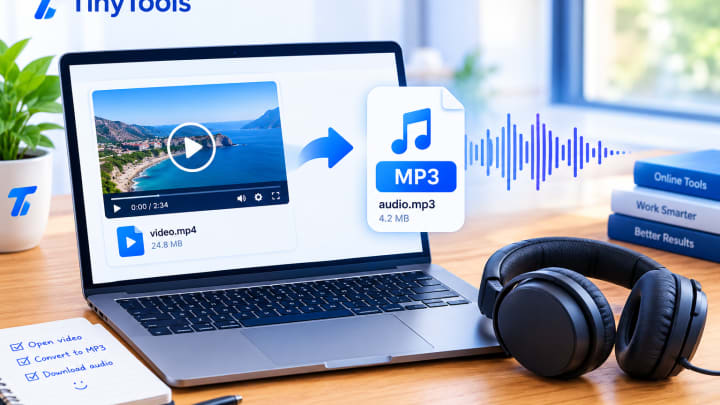 VideoHow to Convert a Video to MP3 AudioConvert video to MP3 in your browser. Extract the audio from MP4, MOV, WebM or MKV files for free, with no upload, no sign-up and a choice of quality.14 October 2026 · 6 min read
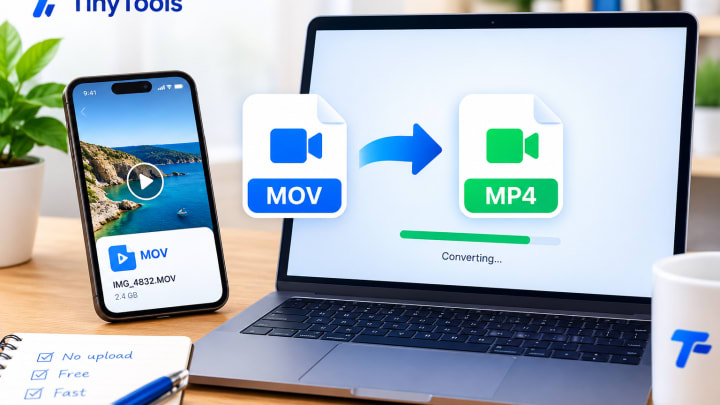 VideoHow to Convert MOV to MP4 (Free, No Upload)Convert MOV to MP4 for free in your browser. Make iPhone and QuickTime videos play on Windows, Android, smart TVs and websites, without uploading the file.10 October 2026 · 6 min read