
How to Convert MOV to MP4 (Free, No Upload)
By TinyTools Team · · 6 min read
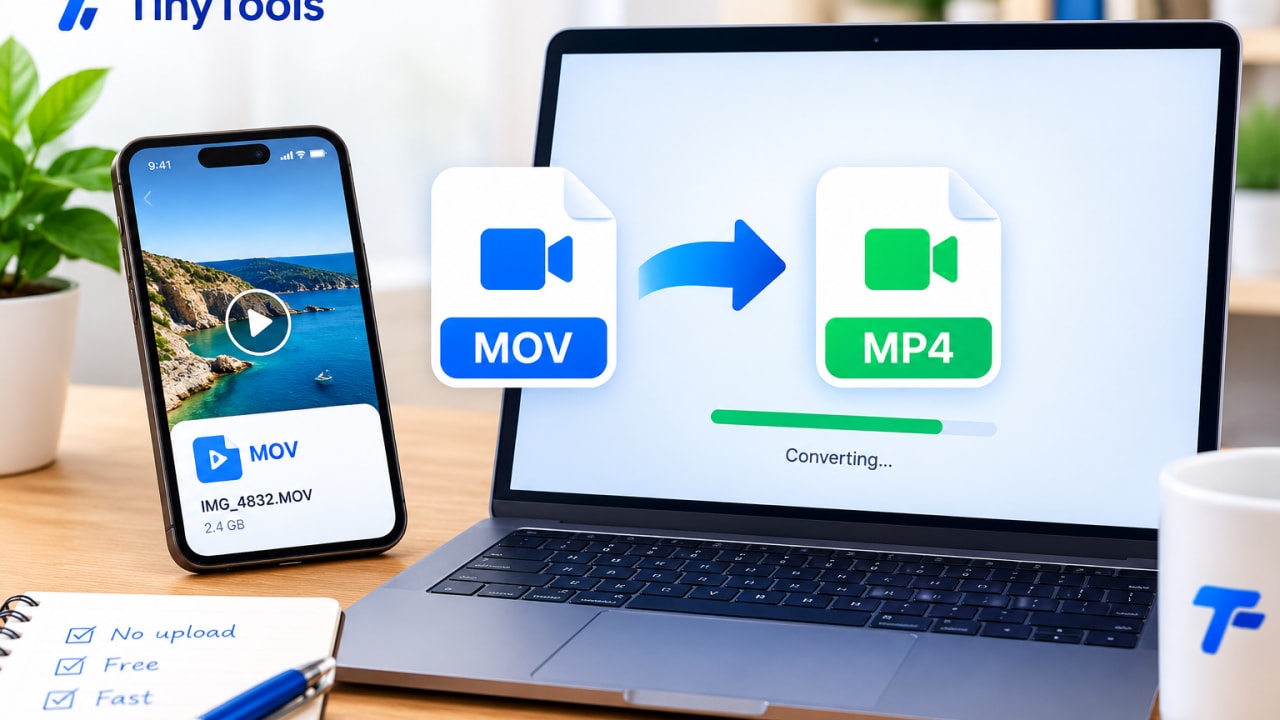
To convert MOV to MP4, open the video in a converter, choose MP4 as the output format and save the new file. A browser-based converter does this on your own device in a few seconds to a few minutes, depending on the length of the video, and the result plays on almost every phone, computer, TV and website.
MOV files usually come from iPhones, iPads and Mac software. They play perfectly on Apple devices, but people on Windows or Android, some smart TVs, and some upload forms can struggle with them. Converting to MP4 is the standard fix.
MOV vs MP4: what is the difference?
Both MOV and MP4 are containers. A container is the wrapper that holds the video track, the audio track and information such as duration and rotation. The actual picture inside is compressed with a codec, and the same codecs can live in either container.
- MOV is Apple's QuickTime format. It is the default on iPhones and is well supported on Apple devices and in professional editing software.
- MP4 is an international standard based on the same design as MOV. It is the most widely supported video format there is.
That is why a MOV can play perfectly on one device and refuse to open on another: the file is fine, but the software does not recognise the wrapper or cannot decode the codec inside. Newer iPhones often record in HEVC (also called H.265), which is efficient but less universally supported than the older H.264.
When you need to convert MOV to MP4
- Someone cannot play your video. A Windows laptop, an Android phone or a smart TV shows an error or plays sound with no picture.
- A website or form rejects the file. Many upload forms list MP4 as the accepted format.
- You are putting video on a website. MP4 plays in every modern browser.
- The video plays sideways. A MOV can carry rotation information that some players ignore. Converting it to MP4 normally settles the orientation.
- You are editing in software that prefers MP4. Some editors and older programs handle MP4 more reliably.
How to convert MOV to MP4 with TinyTools
The TinyTools Video Converter changes the format on your own device using your browser's built-in video encoder, so the file is never uploaded.
- Add your MOV file. Drag it in or click to choose it. MP4, MOV, WebM and MKV files up to 500 MB are accepted.
- Choose MP4. It plays on essentially everything. WebM is smaller but suited to websites rather than sharing, and MP3 keeps only the sound.
- Set the quality. Balanced is a good default for sharing. Choose High if you want the result to look as close to the original as possible.
- Choose a resolution if you want a smaller file. Leave it on Original to keep the size of the picture, or pick 1080p, 720p or 480p to scale it down. Only sizes smaller than your video are offered.
- Convert and download. Your device does the encoding, then hands you the finished MP4.
The available formats depend on what your browser can encode. If MP4 is not offered or the conversion fails, Chrome supports the widest range of video and is worth trying.
Tips for a good conversion
Convert once, from the original. Every conversion between compressed formats re-encodes the video and loses a tiny amount of quality. Converting back and forth compounds the loss. Keep the original MOV and convert from it each time you need a fresh MP4.
Shrink and convert in one go. If the video is also too big to send, choose 720p during conversion. That saves a separate compression step. For more on getting a file small enough to share, see our guide on how to compress a video for WhatsApp.
Trim first if you only need part of it. Cutting the clip down with Trim Video before converting means less to process and a smaller file. Trimming also saves a MOV as an MP4, so if you need a shorter clip anyway, that one step can do both jobs.
Use the compressor when size, not format, is the problem. The converter changes the format and keeps the quality. The Video Compressor keeps the format and makes the file smaller. If the MP4 still needs shrinking, compress it afterwards.
Change the iPhone setting if you convert often. On an iPhone, the camera format setting can be switched from "High Efficiency" to "Most Compatible". That makes the camera record in H.264, which is more widely supported, though the files are larger. Check your iPhone's camera settings for the exact option.
Limits worth knowing
Browser support. The converter uses WebCodecs, which gives a web page access to your device's video hardware. It is available in Chrome, Edge, Safari 16.4 and later, and recent Firefox. On iPhone and iPad, every browser uses Safari's engine, so updating iOS is what helps if your browser is not supported.
Codec support varies. Whether a particular MOV can be decoded depends on your browser and device. HEVC in particular is not supported everywhere. If the tool cannot read a file, it tells you rather than failing part-way through.
Memory. The video is processed in your device's memory. Files up to around 500 MB are usually comfortable on a desktop computer; on a phone, keep to shorter clips.
Re-encoding. Converting re-encodes the video, so it is not a lossless copy. At the default setting the change is normally invisible.
Privacy. Nothing is uploaded. If you are wondering how that compares with other online converters, our article on whether online file converters are safe explains what to check.
Frequently asked questions
How do I convert MOV to MP4 for free?
Use a browser-based converter such as the TinyTools Video Converter. Add your MOV file, choose MP4, and download the result. There is no charge, no watermark, no sign-up and no upload.
Does converting MOV to MP4 lose quality?
Converting re-encodes the video, which always loses a little, but at the default setting it is normally invisible. Avoid converting the same file repeatedly, because each round trip adds to the loss.
Can I convert MOV to MP4 on my iPhone?
Yes, in Safari or any other browser on a recent version of iOS, since they all support WebCodecs from iOS 16.4 onwards. Shorter videos work best on a phone because the conversion happens in its memory.
Why won't my iPhone video play on Windows or Android?
Usually because the software does not support the MOV container or the HEVC codec the iPhone recorded in. Converting to MP4 makes it far more likely to play everywhere.
Is MP4 better than MOV?
Neither is better in quality, because both can hold the same codecs. MP4 is simply supported by more devices, apps and websites, which makes it the safer choice for sharing.
When a MOV will not play where you need it, open the Video Converter, choose MP4, and you will have a file that works almost anywhere.
Every tool here is free
51 tools for PDFs, images and video, all running in your browser. Create a free account to keep your recent tools on every device.
Keep reading
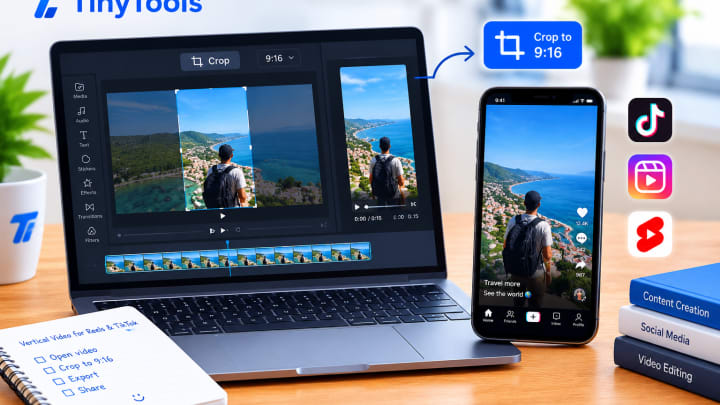 VideoCrop a Video to Vertical for Reels and TikTokCrop a video to vertical 9:16 for Reels, TikTok and Shorts, or to square and 4:5 for feed posts. Free, in your browser, with no upload and no black bars.19 October 2026 · 6 min read
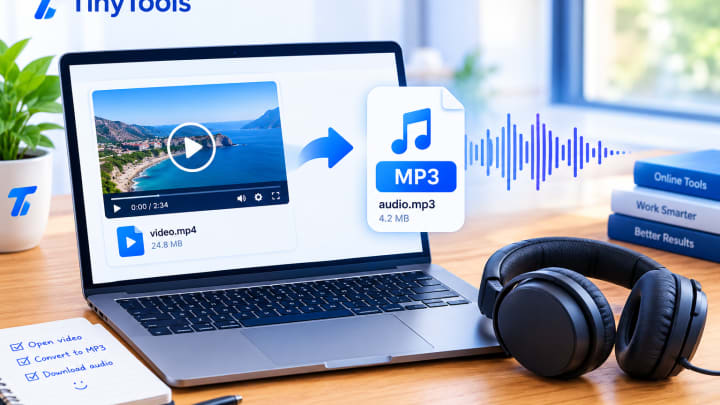 VideoHow to Convert a Video to MP3 AudioConvert video to MP3 in your browser. Extract the audio from MP4, MOV, WebM or MKV files for free, with no upload, no sign-up and a choice of quality.14 October 2026 · 6 min read
 VideoHow to Compress a Video for WhatsAppCompress a video for WhatsApp so it sends fast, stays sharp and uses less data. A free, step-by-step guide that works in your browser with no upload.7 October 2026 · 6 min read