
How to Convert PDF Pages to JPG Images
By TinyTools Team · · 5 min read
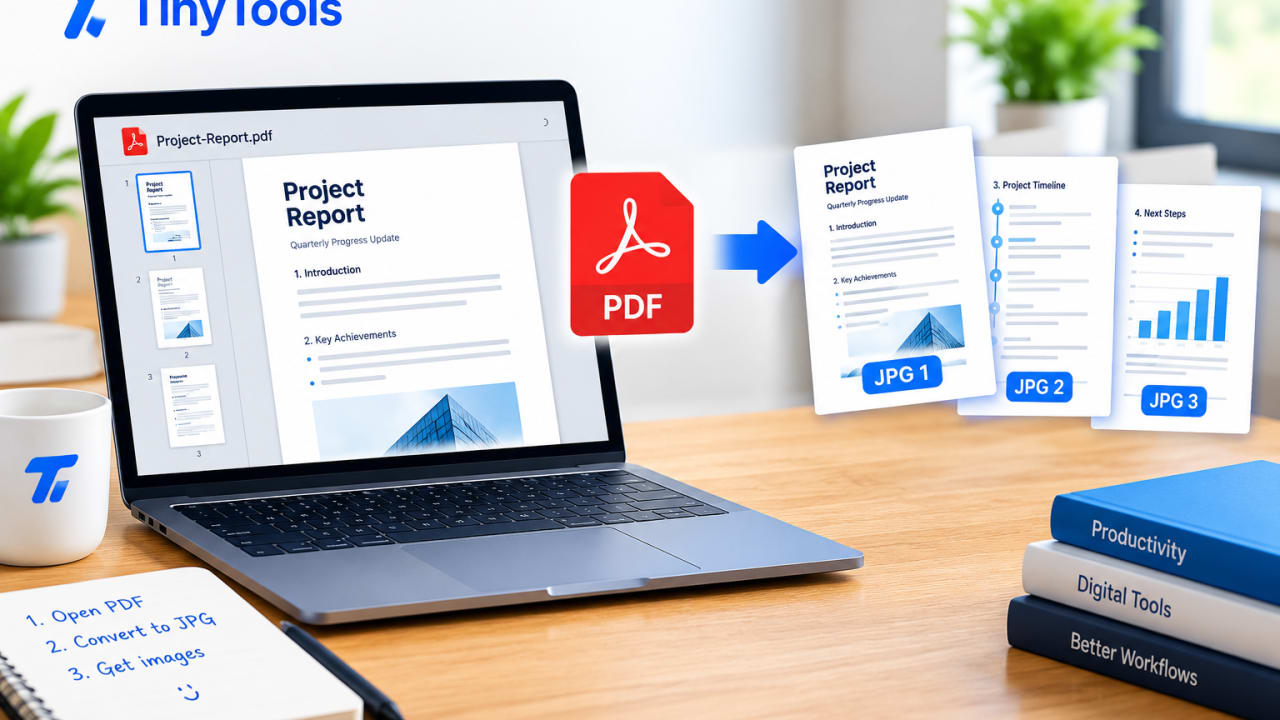
To convert a PDF to JPG, open it in a PDF to JPG converter, choose a resolution, and download each page as an image. With TinyTools, every page is rendered in your browser at the resolution you pick, from a small screen-sized preview to a 300 DPI print-quality export, and the document is never uploaded.
Here is when converting makes sense, which settings to choose, and what you give up when a page becomes a picture.
Why convert a PDF to JPG?
PDFs are the right format for documents, but not every place accepts them:
- Messaging apps. A page sent as an image shows up directly in a WhatsApp chat or status, instead of as an attachment the other person has to open.
- Image-only upload forms. Some forms ask for a picture of a document, not a PDF.
- Social media. You cannot post a PDF as a normal post, but you can post an image of a flyer or price list.
- Slides and documents. Dropping a page into a presentation is easier as an image.
- Quick previews. A JPG thumbnail of a page is easy to glance at on any device.
Choosing the right resolution
Resolution decides how sharp the images are and how large the files get. TinyTools offers three settings.
Good (150 DPI) is the default and suits most uses. Print (300 DPI) produces roughly four times as many pixels as 150 DPI, so the files are much larger and conversion takes a little longer. Choose it only when the image will be printed or someone needs to read small print by zooming in.
How to convert PDF to JPG with TinyTools
The converter below renders each page of your PDF as an image, right in your browser.
- Drop in the PDF you want to convert.
- Pick a resolution: Screen, Good or Print.
- Leave the image format on JPG, unless your pages are mostly text or diagrams (see below).
- Click convert. Long documents take a little longer.
- Download the pages individually, or use Download all to save the whole set.
JPG or PNG?
The converter can also export PNG, and the choice matters.
- JPG suits pages with photographs, such as flyers, brochures and photo-heavy reports. It gives much smaller files.
- PNG suits pages that are mostly text, lines or diagrams. It is lossless, so letters and thin lines stay perfectly sharp instead of picking up the faint smudge JPG can leave around high-contrast edges.
If you need sharp text or a transparent background, the dedicated PDF to PNG tool can also remove the white page so only the ink is left. Our guide to getting sharp PNGs from a PDF goes into more detail, and JPG vs PNG explains the difference between the formats.
Converting only some pages
The converter turns every page of the PDF you give it into an image. If you only need page 3 of a 20-page document, extract it first with Split PDF, then convert the smaller file. It saves time and spares you from sorting through 20 images.
Keeping image files small
A 300 DPI image of a full page can be large, and a set of them adds up quickly.
- Pick the lowest resolution that does the job. For sharing in a chat, Good or Screen is plenty.
- Compress afterwards if needed. Compress Image can shrink JPGs further, and around 80% quality is usually a large saving with little visible difference.
- Only convert the pages you need. Split first.
What you give up when a page becomes a picture
Converting a page to an image turns everything on it into pixels. That has consequences:
- Text can no longer be selected, searched or copied. That is inherent to any conversion to an image, not a limitation of a particular tool.
- Links stop working. A clickable web address in the PDF becomes plain pixels.
- Zooming has limits. A 96 DPI image will look blurry if someone zooms into small print.
So keep the original PDF. Use the JPGs for sharing and previews, and send the PDF whenever someone needs to work with the text.
Sharing converted pages on WhatsApp
Converting PDF pages to JPG is often about sharing them in a chat, and a couple of details help them arrive readable.
- Photo or document? Messaging apps often compress images sent as photos, which can blur small print. If the page has fine text, such as a price list or timetable, sending the image as a document or file usually keeps it sharper.
- Send in order. Select the pages in sequence so they arrive as page 1, 2, 3. The downloaded file names include the page number, which makes this easier.
- Use Good resolution. 150 DPI is readable on a phone screen without making each image heavy on mobile data.
- Consider sending the PDF too. If the recipient needs to print or keep the document, the original PDF is still the better file.
Common mistakes to avoid
- Choosing Print for everything. It makes large files that are slow to send, especially on mobile data.
- Sending images when the recipient needs a document. An employer or school portal asking for a PDF wants the PDF.
- Forgetting the page order. When you send several pages as images, they may arrive out of order in a chat. Check the file names, which follow the page order, and send them in sequence.
- Using JPG for small text. If a page is dense text, PNG will be clearer.
Frequently asked questions
How do I convert a PDF to JPG on my phone?
Open the tool in your phone's browser, choose the PDF from your files, pick a resolution and convert. Then download the images to share or save to your gallery.
What resolution should I choose for PDF to JPG?
Good (150 DPI) is right for viewing on screen and sharing. Choose Print (300 DPI) only for printing or when fine detail matters, because the files are several times larger.
Can I convert just one page of a PDF to JPG?
Extract that page with Split PDF first, then convert the single-page file.
Will the text in the image be selectable?
- An image is just pixels, so text can no longer be selected or searched. Keep the original PDF if you need the text.
Is my PDF uploaded to a server?
- Pages are rendered in your browser using the same engine that displays PDFs on the web, so the document never leaves your device.
Ready to turn your pages into pictures? Open PDF to JPG and convert your document now.
Every tool here is free
51 tools for PDFs, images and video, all running in your browser. Create a free account to keep your recent tools on every device.
Keep reading
 PDFConvert Word to PDF Without Microsoft OfficeConvert Word to PDF without Microsoft Office, free in your browser. Keeps headings, lists, tables and images, with honest notes on fonts and .doc files.19 October 2026 · 6 min read
 PDFConvert PDF to Word and Get an Editable DocumentConvert PDF to Word and get an editable .docx with headings, lists and emphasis intact. What converts well, what doesn't, and why scans need OCR.10 October 2026 · 6 min read
 PDFHow to Compress a PDF to a Smaller Size (Free)Compress a PDF to a smaller size for free in your browser. Learn which compression level to pick, what actually shrinks, and why nothing is uploaded.7 October 2026 · 6 min read