
Convert Word to PDF Without Microsoft Office
By TinyTools Team · · 6 min read
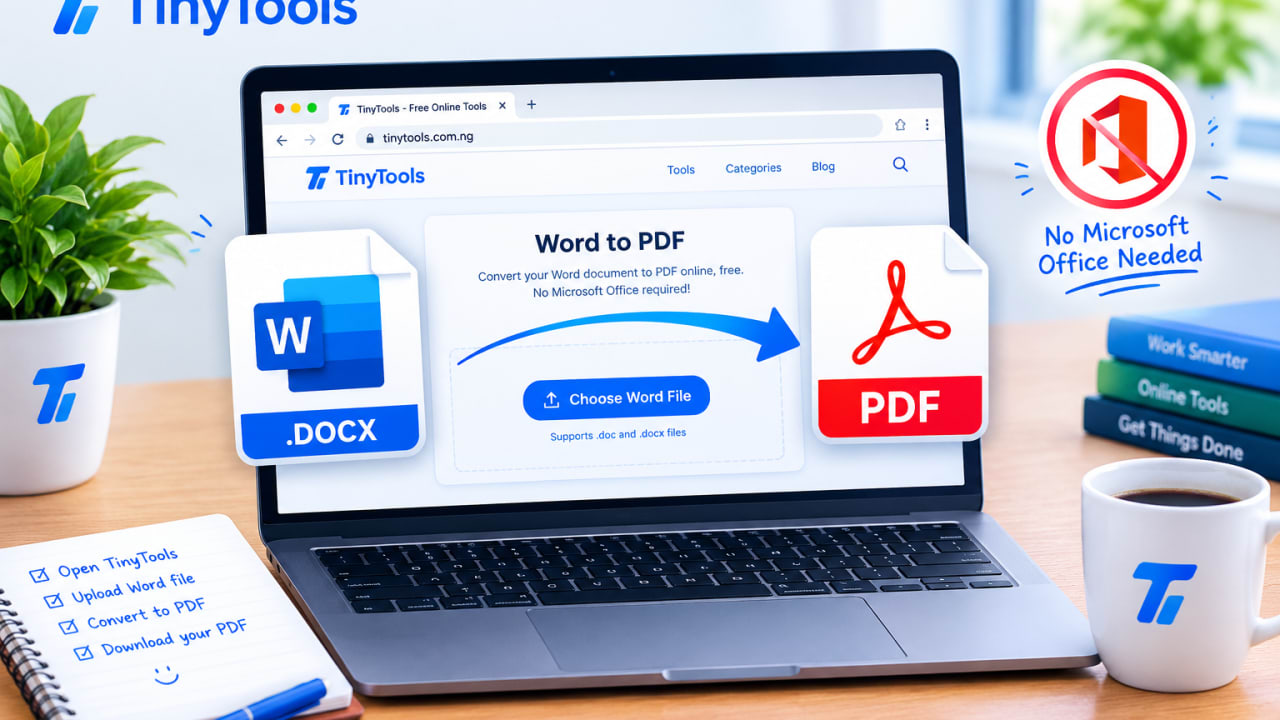
You can convert Word to PDF without Microsoft Office by using a browser-based converter: upload your .docx, let it lay the document out page by page, and download a PDF that opens the same way on any device. TinyTools does this entirely in your browser, free and with no sign-up, so it works on a borrowed laptop, a cybercafé computer or your phone.
This guide covers how to do it, what comes through perfectly, and the two or three things worth checking before you send the PDF.
Why send a PDF instead of a Word file
A Word document can look different on every device that opens it. Fonts get substituted, pictures shift, and a page break lands in the wrong place. Sometimes the recipient does not have a word processor at all.
A PDF fixes all of that. It looks the same everywhere, prints predictably, and is harder to change by accident. That is why employers, schools, government portals and clients so often ask for documents "in PDF format only".
Common reasons to convert:
- Sending a CV or cover letter to an employer
- Submitting an assignment or project to a school portal
- Sharing a letter, quotation or proposal with a client
- Uploading a document to an online application that only accepts PDF
How a .docx becomes a PDF
A .docx file describes what a document contains and how it should look, but not where everything sits on the page. Word works that out each time you open the file. Converting to PDF means doing that layout work: measuring every word, breaking lines and flowing text from page to page.
TinyTools does exactly that in your browser, keeping headings, lists, tables, images, alignment, colour, bold and italic.
How to convert Word to PDF with TinyTools
The converter below lays your document out on your own device, so nothing is uploaded.
- Drag your .docx file into the box, or click to choose it.
- Click convert. Your document is laid out page by page.
- Download your PDF.
- Open it and scroll through before sending it anywhere.
Three things worth knowing before you convert
Fonts may be substituted
A .docx names the fonts it wants but does not include them, and a web page cannot read the fonts installed on your computer. TinyTools sets your text in the closest standard match: a serif font stays serif, a monospaced font stays monospaced.
The result looks very close to your original, but individual line breaks can fall in slightly different places. On a CV where every line counts, check that nothing has spilled onto an extra page.
Older .doc files need saving as .docx first
The .doc and .docx formats share a name but not a structure. A .docx is a modern, open format; a .doc is a much older binary format that essentially only Word understands. If you have a .doc, open it in Word, Google Docs or LibreOffice and use Save As (or Download as) to make a .docx, then convert that.
Some characters and image types are not supported
The standard PDF fonts cover Latin scripts and Western European accents. Text in Chinese, Japanese, Arabic, Cyrillic or Greek, and emoji, cannot be drawn with them, so those characters are left out. The tool tells you exactly how many were affected rather than handing you a document with silent gaps.
Images work the same way. PNG and JPEG images are embedded at their intended size. A few image formats Word allows, such as EMF and WMF, cannot go into a PDF directly; if any turn up, the tool tells you how many were left out.
For most CVs, letters, reports and assignments written in English, none of this comes up.
Checking your PDF before you send it
A quick review prevents embarrassing surprises:
- Page count. Did a one-page CV become two pages? If so, trim a line or adjust spacing in your document and convert again.
- Tables. Make sure columns are readable and nothing is cut off.
- Images. Confirm your logo, signature image or photos are present.
- Special characters. Check names with accents and any symbols.
If the PDF is large because of photos, run it through Compress PDF. This is especially useful for application portals with strict size limits; see our guide to reducing PDF size for upload.
Combining several documents
If you need to send a cover letter, CV and certificates as one file, convert each Word document to PDF first, then join them with Merge PDF in the order requested.
Going the other way
If you receive a PDF and need to edit it, PDF to Word turns a text-based PDF back into an editable .docx. Our guide to converting PDF to an editable Word document explains what comes through and what does not.
Converting on a shared or public computer
Converting without Office is often something you do on a computer that is not yours: a cybercafé, a school lab or a colleague's laptop. A few habits keep your documents private there.
- Prefer tools that do not upload. TinyTools converts the document inside the browser, so the file is not sent to a server along the way.
- Clear up afterwards. Delete both the .docx and the PDF from the downloads folder, and empty the recycle bin if you can.
- Do not stay signed in. If you opened the document from email or cloud storage, sign out before you leave.
- Use a flash drive or email carefully. Save the finished PDF where you need it, then remove local copies.
Common mistakes to avoid
- Renaming .docx to .pdf. Changing the extension does not convert the file. The recipient will get an error.
- Converting a .doc without saving as .docx. The tool will not accept the older format.
- Not checking the page count. Font substitution can push a line onto a new page.
- Sending the editable file by mistake. If someone asked for a PDF, make sure the attachment ends in .pdf.
Frequently asked questions
How can I convert Word to PDF without Microsoft Office?
Use a browser-based converter such as TinyTools Word to PDF. It runs in any modern browser on a computer or phone, with no software to install and no sign-up.
Will my PDF look exactly like it does in Word?
Very close. Headings, lists, tables, images, colour and alignment come through as they are. Fonts are matched to the closest standard font, so individual line breaks may fall slightly differently.
Why will it not accept my .doc file?
A .doc is an older binary format. Open it in Word, Google Docs or LibreOffice, save it as .docx, then convert that.
Can I convert Word to PDF on my phone?
Yes. Open the tool in your phone's browser, choose the .docx from your files, and download the PDF. Very long documents may strain an older phone's memory.
Is my document uploaded anywhere?
- It is read and converted entirely inside your browser and disappears from memory when you close or reload the page.
Ready to send a PDF? Open Word to PDF and convert your document in seconds.
Every tool here is free
51 tools for PDFs, images and video, all running in your browser. Create a free account to keep your recent tools on every device.
Keep reading
 PDFConvert PDF to Word and Get an Editable DocumentConvert PDF to Word and get an editable .docx with headings, lists and emphasis intact. What converts well, what doesn't, and why scans need OCR.10 October 2026 · 6 min read
 PDFHow to Convert PDF Pages to JPG ImagesConvert PDF to JPG images page by page, free in your browser. Choose the right resolution for screen or print, and share pages anywhere a PDF won't go.10 October 2026 · 5 min read
 PDFHow to Compress a PDF to a Smaller Size (Free)Compress a PDF to a smaller size for free in your browser. Learn which compression level to pick, what actually shrinks, and why nothing is uploaded.7 October 2026 · 6 min read