
How to Crop an Image to a Square for Profile Pictures
By TinyTools Team · · 6 min read
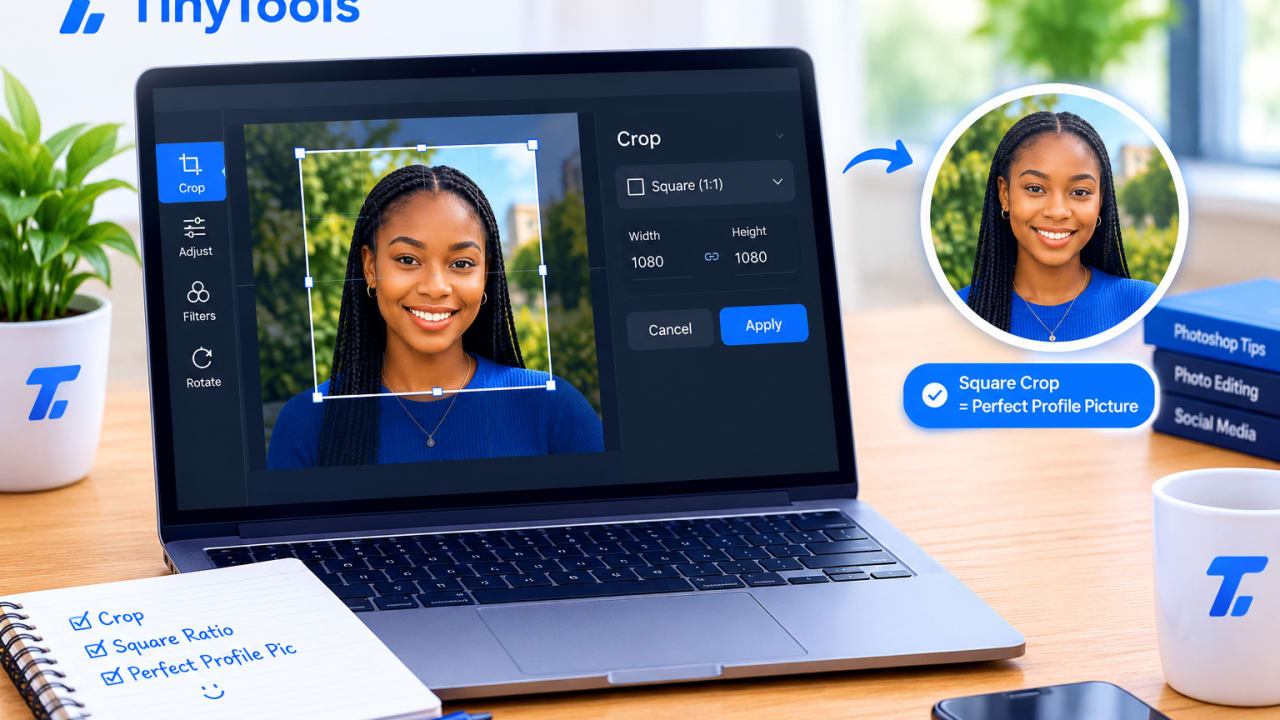
To crop an image to a square, open it in an image cropper, lock the aspect ratio to 1:1, drag the selection over the part you want to keep, and download. The square stays perfectly square however you move or resize it, so your profile picture will not be squashed or awkwardly cut off when you upload it.
This guide covers the steps, how to frame a photo so it still looks good when a platform shows it as a circle, and what to do if you also need an exact pixel size.
Why profile pictures need to be square
Most platforms display profile pictures as squares or circles. If you upload a tall phone photo, one of two things usually happens:
- The platform crops it automatically, often cutting off the top of your head or centring on the wrong spot.
- It asks you to adjust the crop on a tiny screen, which is fiddly on a phone.
Cropping to a square yourself, before you upload, means you decide exactly what is in the frame. It is the same idea for WhatsApp display pictures, professional networking profiles, school and work portals, online shop logos and business profiles.
How to crop an image to a square with TinyTools
Image Cropper lets you drag a selection over your photo and lock it to a square.
- Add an image. Drop in a JPG, PNG or WebP file, or tap to choose one from your phone's gallery or files.
- Lock the ratio to 1:1. Under "Aspect ratio", choose 1:1. Your selection now stays perfectly square.
- Position the square. Drag across the image to draw the crop area, then drag the corner handles to make it bigger or smaller and move it until the framing looks right.
- Choose a format and crop. Save as PNG for a lossless result, or JPG for a smaller file. The exact pixel dimensions are shown before you save.
- Download. Your square image is ready to upload.
Cropping happens on your device. Nothing is sent to a server.
How to frame a good square profile picture
Getting the shape right is easy. Getting the framing right takes a little more thought.
Leave room for a circle
Many platforms show profile pictures inside a circle, which cuts off the corners of your square. Keep your face and anything important comfortably inside the middle of the frame, not tight against the edges. A useful check: imagine a circle touching all four sides of your square. If your ears, chin or hair would be clipped, make the square a little bigger.
Head and shoulders works best
For a personal profile photo, a crop from roughly the top of the chest to just above the head is a safe default. Your face is large enough to recognise at small sizes, which matters because profile pictures are usually shown very small.
Centre your eyes, not your whole head
Placing your eyes a little above the middle of the square often looks more natural than putting the centre of your head dead centre.
For logos, leave even margins
If you are cropping a business logo, leave a consistent gap on all sides so it does not touch the edge of the circle or square. A logo that fills the frame edge to edge can look cramped once a platform rounds it off.
What size should a profile picture be?
Square, and at least 400 × 400 pixels is a sensible minimum for most platforms. Requirements differ between services and can change, so check the size each platform recommends if you want the sharpest result.
Once your image is square, you can set an exact pixel size with Resize Image. Keep the aspect ratio locked, type the width, and the height will match automatically because the image is already square.
If the platform or portal also has a file size limit, run the result through Compress Image. Its File size mode lets you enter a maximum in KB.
For school, exam, job and bank portals that set strict rules on shape, dimensions and file size, our guide to resizing a photo for online forms walks through all three steps together.
Other ratios you can use
The same cropper handles more than squares:
- 16:9 for video thumbnails and widescreen banners.
- 4:3 for a classic photo shape.
- Free when you just want to cut away part of an image without a fixed shape.
Lock the ratio first, then drag. The selection keeps that shape as you resize it.
Tips for cropping on your phone
- Use a large original. A square crop from a full-resolution photo looks sharp. A square crop from a small screenshot or a picture that has already been forwarded several times may look soft.
- Crop before you compress. Cropping first means compression is only spent on the part you keep.
- Do one image at a time. The right crop is different for every photo, so the tool works on one image at a time by design.
Common mistakes
- Resizing a tall photo into a square instead of cropping it. Forcing a rectangle into a square shape stretches or squashes the picture. Crop to the shape first, then resize.
- Cropping too tightly. The circle mask cuts off your chin or hair.
- Enlarging a small crop. If the square you keep is tiny, making it bigger will look blurry. Start with a higher-resolution photo.
- Forgetting about hidden data. A photo straight from your camera can carry details such as location. If that matters to you, read our guide on removing location data from photos.
Frequently asked questions
How do I make a picture square without cutting it?
You cannot make a non-square photo square without either cropping some of it away or adding space around it. Cropping, as described above, is the cleanest option for profile pictures. Stretching it into a square distorts the image.
Does cropping reduce image quality?
The pixels you keep are untouched. Saving as PNG is completely lossless; saving as JPG re-encodes them, which is invisible at high quality settings.
What size should my profile picture be?
Square, and at least 400 × 400 pixels for most platforms. Crop to 1:1 first, then use Resize Image if you need an exact pixel size.
Can I crop several photos at once?
- The right crop differs for every picture, so the cropper works on one image at a time. For batch changes that do not need framing decisions, use Resize Image.
Are my photos uploaded when I crop them?
- Cropping happens entirely in your browser, and your photo never leaves your device.
Make a clean square profile picture now with the Image Cropper. It is free, works on any phone, and needs no sign-up.
Every tool here is free
51 tools for PDFs, images and video, all running in your browser. Create a free account to keep your recent tools on every device.
Keep reading
 ImagesHow to Convert PNG to JPG (and When You Should)Convert PNG to JPG to make large images far smaller for email and uploads. Learn when to do it, what happens to transparency and the best quality setting.14 October 2026 · 6 min read
 PDFHow to Convert PDF Pages to JPG ImagesConvert PDF to JPG images page by page, free in your browser. Choose the right resolution for screen or print, and share pages anywhere a PDF won't go.10 October 2026 · 5 min read
 ImagesHow to Compress an Image Without Losing QualityHow to compress an image without losing quality you can see. The right settings, formats and resizing tricks to shrink photos and keep them sharp.7 October 2026 · 6 min read