
How to Remove Location Data From Your Photos
By TinyTools Team · · 7 min read
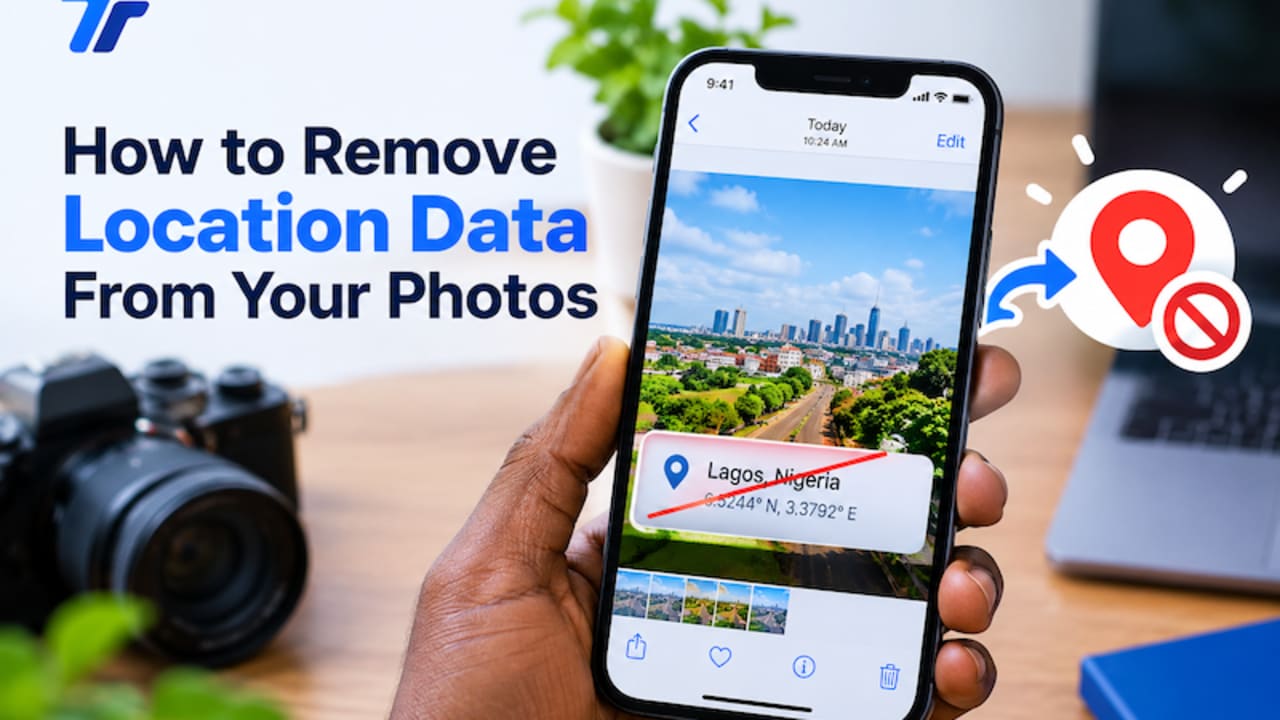
To remove location data from a photo, save a fresh copy of the image through a converter that re-encodes it: the new file is built from the picture alone, so the hidden GPS coordinates and other EXIF details are left behind. Before you do, it is worth checking what the photo is actually carrying, and afterwards, checking that the clean copy really is clean.
This guide shows you how to do all three in your browser, without uploading the photo anywhere.
What location data is hiding in your photos?
When your phone or camera takes a picture, it usually writes a block of extra information into the file, known as EXIF data. Depending on your device and settings, it can include:
- The make and model of the phone or camera.
- Lens and exposure settings, such as shutter speed, aperture and ISO.
- The date and time the photo was taken.
- The GPS coordinates of where you were standing, if location services were on for the camera.
The picture looks the same either way, so most people never know this information is there.
Why it matters
Location data is the part to be careful with. A photo taken at home and sent as an original file can reveal where you live. The same goes for photos of your children's school, your workplace, or a shop you run from home.
Some situations where it is worth stripping location first:
- Selling items online, where you photograph things at home.
- Sharing photos with people you do not know well, such as on marketplaces, forums or in group chats.
- Sending pictures of property, vehicles or valuables.
- Submitting photos to portals or strangers by email, where the original file is passed along intact.
Does posting on social media expose your location?
It depends where and how you share. Most large social networks strip metadata when you upload a photo. But sending the original file by email, as a cloud storage link, or as a "document" or file attachment in a messaging app usually preserves it, GPS included.
That is the gap to watch: the photo you share casually in a chat may be cleaned, while the "full quality" file you send as a document often is not.
Step 1: Check what your photo contains
Before stripping anything, see what is there. The Image Metadata Viewer reads the EXIF block and shows it in plain groups.
- Add a photo. Drop in a JPG or PNG. The file is read on your device, not uploaded.
- Read the details. Camera, lens, exposure, date and location are grouped separately, alongside basic file facts.
- Look for the GPS warning. If the photo contains coordinates, the tool flags it clearly and offers a link to see the spot on a map. (That link opens an external map website, so only use it if you are happy to share the coordinates with that site.)
If the tool says the image carries no EXIF data, that is normal for screenshots, images saved from the web, and photos that have already been through a social network.
Reading the metadata on your device matters for this kind of tool in particular. A photo with GPS coordinates in it never gets transmitted anywhere just to find out what it contains.
Step 2: How to remove location data from a photo with TinyTools
The most reliable way is to re-save the image with Image Converter. It always builds a brand-new file from the picture itself, and the metadata is not carried across.
- Add your photo. Drop in the image, or several at once.
- Pick the output format. For a normal photo, choose JPG to keep the file small. PNG and WebP also work.
- Set the quality. For JPG, a high setting such as the default 85% keeps the photo looking the same.
- Convert and download. Save the clean copy and share that one, not the original.
Can I use Compress Image instead?
Often, yes. Compress Image also re-encodes photos, which drops embedded metadata such as GPS location, camera model and timestamps. There is one catch. If a file is already so well optimised that re-encoding would make it bigger, Compress Image keeps the original and tells you so. When it does that with a JPG, it still erases the GPS location, but the camera model and timestamps stay in the file. Image Converter always writes a fresh file with no metadata at all, which is why it is the safer choice when privacy is the goal.
Step 3: Confirm the copy is clean
Drop the new file back into the Image Metadata Viewer. It should report no EXIF data and no GPS warning. This takes a few seconds and removes any doubt before you send the photo.
Stop location being recorded in the first place
Stripping data after the fact works, but it is easy to forget. If you rarely need to know where your photos were taken, turn off location tagging in your phone's camera settings, or remove the camera app's permission to use your location. The exact menu names vary by phone and software version, so look in your camera app's settings or your phone's privacy and location settings.
You can turn it back on whenever you want location tags, for example on a trip.
Common mistakes
- Assuming every app strips metadata. Some do, some do not, and behaviour can depend on whether you send a photo as an image or as a file. If it matters, clean it yourself.
- Sending the original by accident. Rename your clean copy clearly, for example by adding "-clean" to the name, so you attach the right one.
- Checking only one photo from a batch. Location settings can change between photos. Convert the whole batch together.
- Forgetting what is visible in the picture itself. Removing GPS data does not hide a house number, a street sign, a car registration plate or a school uniform badge in the image. Crop those out with Image Cropper if needed.
Limits worth knowing
- This removes the data from your copy only. Any original you have already sent keeps its metadata.
- Re-encoding a JPG is a lossy save. At a high quality setting the difference is very hard to see, but if you need a pixel-perfect copy, convert to PNG instead (the file will be larger).
- The viewer reads JPG and PNG. Formats your browser cannot open cannot be checked or converted here.
For more on why processing files in your browser keeps them private, see our explainer on why browser-based tools keep your files private.
Frequently asked questions
How do I know if my photo has location data?
Open it in the Image Metadata Viewer. If the photo contains GPS coordinates, the tool shows a clear warning along with the rest of the EXIF details.
Does WhatsApp remove location from photos?
How a messaging app handles a photo can depend on how you send it. Sending a picture as a document or file generally delivers the original file unchanged, metadata included. If you are unsure, strip the location yourself before sending.
Does taking a screenshot remove location data?
A screenshot is a new image and usually has no GPS data. But it also captures your screen at screen resolution, often with extra borders, so converting the original is a cleaner way to get a private copy.
Will removing EXIF data reduce photo quality?
Converting to JPG at a high quality setting looks the same at normal viewing size. If you want zero change to the pixels, convert to PNG, which is lossless.
Are my photos uploaded to check or remove metadata?
- Both reading and converting happen in your browser, so your photos never leave your device.
Check your photos before you share them with the Image Metadata Viewer. It is free, instant, and nothing is uploaded.
Every tool here is free
51 tools for PDFs, images and video, all running in your browser. Create a free account to keep your recent tools on every device.
Keep reading
 PrivacyAre Online File Converters Safe? What to CheckAre online file converters safe? Often, but it depends where your file goes. What to check before you upload, and how to keep sensitive files local.3 October 2026 · 7 min read
 MobileHow to Edit Documents on Your Phone (PDFs and Images)How to edit documents on your phone without extra apps. Turn photos into PDFs, shrink, rotate and merge files, and resize images in your mobile browser.19 October 2026 · 6 min read
 PDFConvert Word to PDF Without Microsoft OfficeConvert Word to PDF without Microsoft Office, free in your browser. Keeps headings, lists, tables and images, with honest notes on fonts and .doc files.19 October 2026 · 6 min read