
How to Scan a Document to PDF on Your Phone
By TinyTools Team · · 6 min read
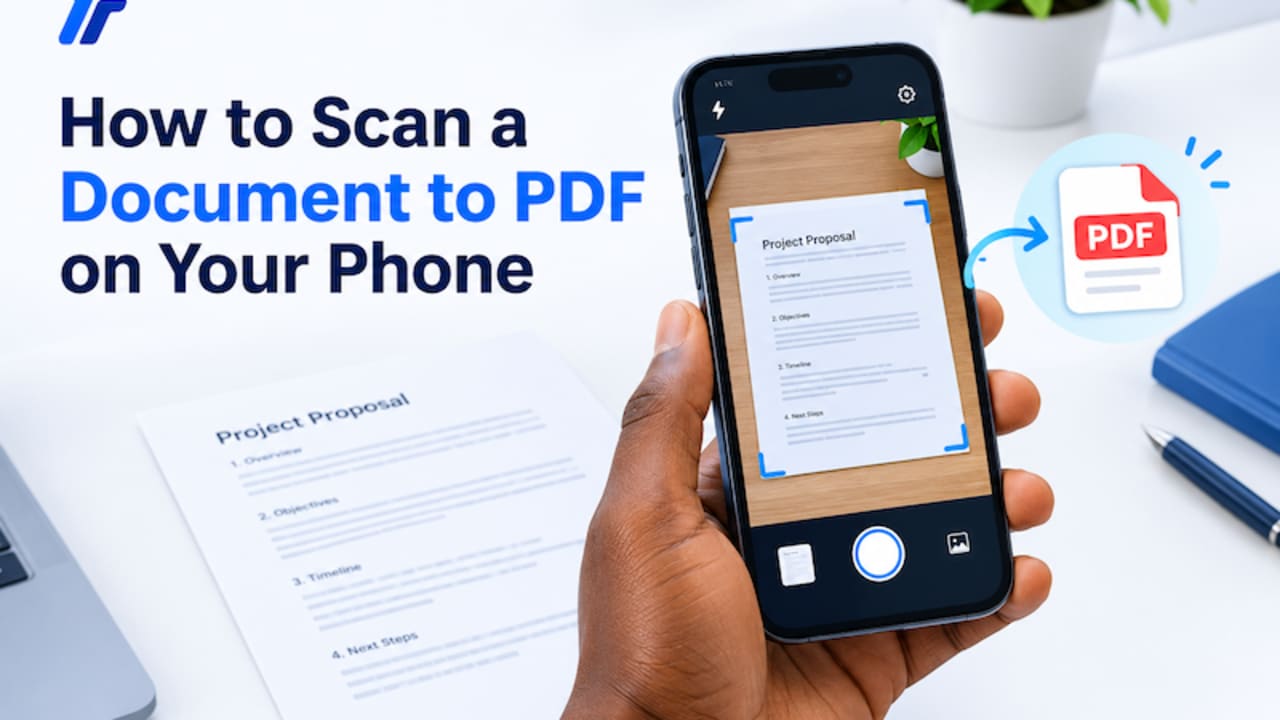
To scan a document to PDF on your phone, photograph each page in good light from directly above, crop away the background, then combine the photos into one PDF with a JPG to PDF converter. You do not need a scanner or a special app: your phone's camera and a browser are enough, and with TinyTools the pages never leave your phone.
The difference between a scan that gets accepted and one that gets rejected is mostly in how you take the photo. This guide covers that first, then the conversion.
What you need
- A phone with a camera
- A flat, well-lit surface, ideally a plain dark table if your document is white paper
- Your phone's web browser
Some phones' camera or notes apps include a document-scanning mode that detects page edges and straightens them automatically. If yours has one, it is worth trying. The method below works on any phone, with or without it.
Taking a photo that works as a scan
Light the page evenly
Daylight near a window is ideal. Avoid direct overhead light that throws the shadow of your phone and hand across the page. Turn off the flash, which tends to create a bright glare spot in the middle of the paper.
Hold the phone directly above the page
Shooting at an angle makes the page look like a trapezium, with the top narrower than the bottom. Hold the phone parallel to the paper, centred over it. If you struggle to keep it steady, rest your elbows on the table.
Fill the frame
Get close enough that the page fills most of the screen, with a small border of background all round. More of the page in the frame means more readable detail.
Use a contrasting background
White paper on a white table makes edges hard to see and crop. A darker surface makes the page stand out.
Keep it flat and sharp
Flatten folded paper under something heavy for a moment first. Tap the screen on the text to focus, and check each photo is sharp before moving on. A blurry page is the most common reason a scanned document is rejected.
One page per photo
Photograph each page separately. Two pages squeezed into one photo are harder to read and produce an awkward PDF page.
Tidy up the photos
Before converting, crop away the table around each page with Crop Image. Drag a selection over just the document, adjust the corners, and download the result. Cropping makes the PDF look like a proper scan rather than a photo of paper on a table.
Then check that every photo is the right way up. Phones often record which way up a photo is as a note in the file rather than turning the image itself. TinyTools reads that note and turns each page upright for you, but a photo taken with the phone held at an odd angle can still be saved the wrong way round. If that happens, you can fix it after converting, as covered below.
How to scan a document to PDF on your phone with TinyTools
Once your photos are ready, the converter below turns them into one PDF, right in your phone's browser.
- Tap the box and choose your page photos from your gallery. JPG, PNG and WebP images all work.
- Put them in order with the arrows. Each image becomes one page, top to bottom.
- Choose A4 as the page size if the PDF is going to an office, school or portal. Each photo is centred on a standard page, ready to print.
- Convert, then download the PDF.
- Open the PDF and scroll through every page to check order, orientation and readability.
Fixing problems after converting
A page is sideways or upside down
Use Rotate PDF. Pick the direction and list only the pages that need turning, such as 2, 5; the rest are left alone. The rotation is saved into the file, so it stays fixed for whoever opens it.
The PDF is too large to send or upload
Phone photos are big, and the PDF is roughly the size of all of them combined. Run it through Compress PDF on the Balanced level, which shrinks the photos inside while keeping pages readable. If you are working to a portal's size limit, our guide to reducing PDF size for upload covers what to try next.
You need to add more pages later
Scan the extra pages into their own PDF, then join the two files with Merge PDF.
What this method cannot do
It is worth being clear about the limits, so nothing catches you out.
- No automatic edge detection or straightening. TinyTools does not detect page edges or correct a tilted photo. That is why holding the phone straight above the page matters so much.
- No text recognition. The PDF contains photos of pages, so the text cannot be selected, searched or converted to an editable Word document. That requires OCR, which these tools do not do.
- No enhancement. The tool does not brighten, sharpen or whiten pages. Good lighting at the start is your best tool.
For most everyday jobs, such as sending a signed form, submitting documents for a job application or emailing a receipt, a carefully taken photo turned into a PDF is all you need.
Common mistakes to avoid
- Using flash. It creates glare that can hide words.
- Shooting at an angle. Text at the top of the page ends up smaller and harder to read.
- Leaving fingers in the shot. Hold the page down at the very edge, or weigh it down instead.
- Skipping the final check. Always scroll through the PDF before sending. A missing or blurry page is much easier to fix now than after a rejection.
Frequently asked questions
Can I scan a document to PDF on my phone without an app?
Yes. Take clear photos with your phone's camera, then use TinyTools JPG to PDF in your phone's browser to combine them into one PDF. Nothing needs installing and there is no sign-up.
How do I scan multiple pages into one PDF?
Photograph each page separately, add all the photos to JPG to PDF, arrange them in order, and convert. Each photo becomes one page of the same PDF.
Why is my scanned PDF so big?
Phone photos are large, and the PDF is roughly their combined size. Compress the finished PDF with Compress PDF, or compress the photos before converting.
Can I edit the text in a PDF scanned with my phone?
Not directly. The pages are images, so getting editable text needs OCR software. TinyTools PDF to Word works only on PDFs that already contain text.
Are my scanned documents uploaded anywhere?
- The PDF is assembled inside your browser, so your photos never leave your phone.
For more on preparing photos, see how to combine photos into one PDF. When your pages are ready, open JPG to PDF and turn them into a clean, shareable document.
Every tool here is free
51 tools for PDFs, images and video, all running in your browser. Create a free account to keep your recent tools on every device.
Keep reading
 PDFConvert Word to PDF Without Microsoft OfficeConvert Word to PDF without Microsoft Office, free in your browser. Keeps headings, lists, tables and images, with honest notes on fonts and .doc files.19 October 2026 · 6 min read
 PDFConvert PDF to Word and Get an Editable DocumentConvert PDF to Word and get an editable .docx with headings, lists and emphasis intact. What converts well, what doesn't, and why scans need OCR.10 October 2026 · 6 min read
 PDFHow to Convert PDF Pages to JPG ImagesConvert PDF to JPG images page by page, free in your browser. Choose the right resolution for screen or print, and share pages anywhere a PDF won't go.10 October 2026 · 5 min read