
How to Combine Photos Into One PDF (JPG to PDF)
By TinyTools Team · · 6 min read
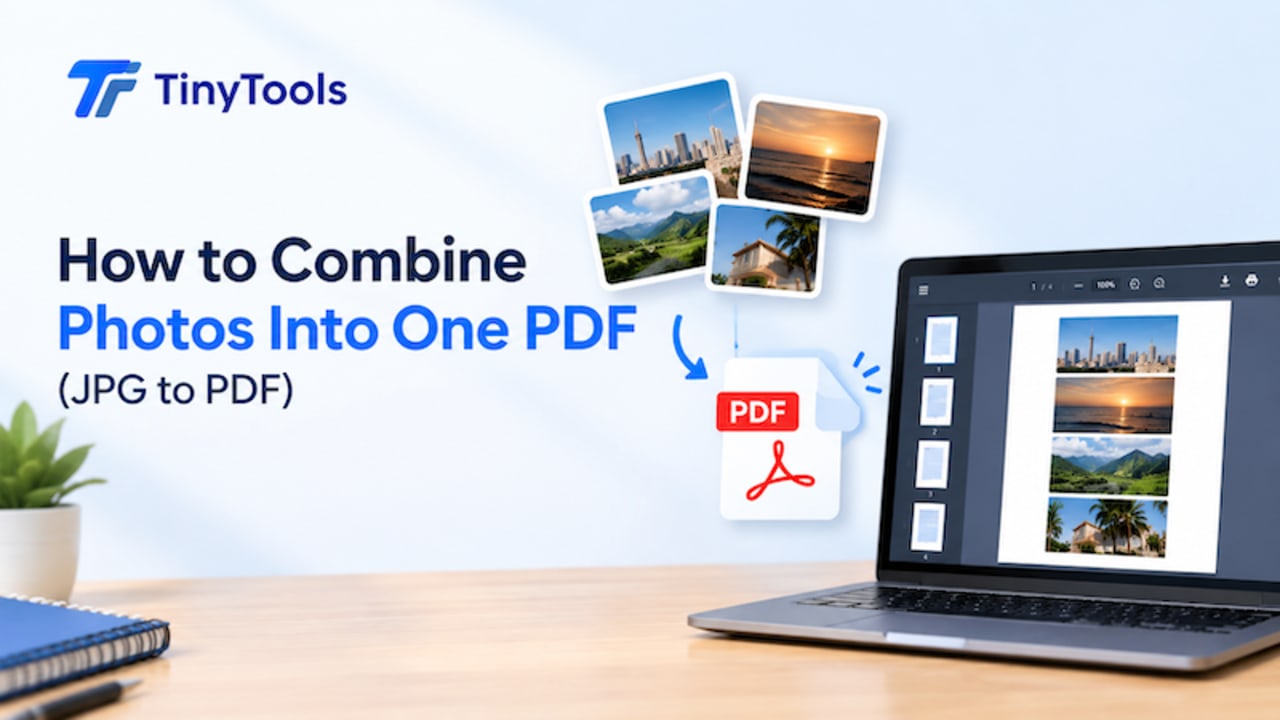
To combine photos into one PDF, add them to a JPG to PDF converter, arrange them in the order you want, choose a page size, and download a single document where each photo is one page. TinyTools does this in your browser with JPG, PNG and WebP images, so your photos are never uploaded and there is nothing to install.
Below is the quick method, plus how to prepare your photos so the PDF looks clean and stays a sensible size.
Why turn photos into one PDF?
A handful of separate photos is awkward to send and easy to get wrong. One PDF solves that:
- It keeps pages in order. Photos sent in a chat or email can arrive jumbled; a PDF cannot.
- It is what forms ask for. Many application portals, schools and offices accept documents only as PDF.
- It is one attachment. Easier to email, upload and file away.
- It prints predictably. With A4 pages, every sheet comes out the same size.
Common examples: photos of handwritten assignments, receipts for an expense claim, pages of a signed agreement, ID cards and certificates for an application, or product photos for a simple catalogue to share with customers.
Prepare your photos first
A few minutes of preparation makes a big difference to the final PDF.
Take clear photos
Shoot in good, even light, hold the phone directly above the page, and fill the frame with the document. If you are photographing paper documents specifically, our guide on scanning documents with your phone covers lighting and angles in detail.
Crop away the background
A photo of a receipt on a wooden table looks untidy as a PDF page. Crop Image lets you drag a selection over just the part you want and remove the rest.
Shrink very large photos
Photos from modern phones are often several megabytes each, and the PDF will be roughly the combined size of your images. If you are combining many photos or need a small file, run them through Compress Image first. Around 80% quality is usually a large saving with very little visible difference.
Name them in order
If you have many photos, renaming them 01, 02, 03 and so on makes them easier to arrange.
Choosing a page size
TinyTools gives you three options.
- Fit to image (the default): every page is exactly the size of its photo, with no white border. Best for screenshots, artwork and photos meant to be viewed on screen.
- A4: each image is centred on a standard A4 page. Best for anything that will be printed or sent somewhere official.
- US Letter: the same idea using the North American paper size.
If you are submitting documents to a school, employer or office, A4 is usually the safer choice because every page comes out a consistent, standard size.
How to convert JPG to PDF with TinyTools
The converter below combines your images into one PDF, entirely on your device.
- Add your images. You can drop in JPG, PNG or WebP files, as many as you need.
- Put them in order. Use the arrows to rearrange; each image becomes one page, top to bottom.
- Choose a page size: Fit to image, A4 or US Letter.
- Convert, then download your finished PDF.
- Open the PDF and scroll through to check the order and that every page is the right way up.
Which image formats work?
JPG and PNG images are embedded directly with no quality loss. WebP, AVIF and GIF images are converted to JPEG first, because the PDF format cannot store them as they are.
If your phone saves photos in a format your browser cannot read, such as HEIC on some iPhones, change the camera setting to save as JPG, or export the photos as JPG before adding them.
Keeping the PDF a sensible size
Because the images are embedded as they are, the PDF is roughly the size of all your photos added together. Ten 3 MB photos make a PDF of around 30 MB, which may be too big to email or upload.
Two ways to fix that:
- Compress the photos before converting, using Compress Image.
- Compress the finished PDF with Compress PDF. The Balanced level shrinks the photos inside while keeping any text sharp.
Adding photos to an existing PDF
You cannot add images to an existing PDF directly here, but there is a simple route: convert your photos to a PDF, then join it to your existing document with Merge PDF. Our guide on how to merge PDF files covers getting the order right.
A simple product catalogue from photos
Small businesses can use the same steps to make a quick catalogue or price list to share with customers. Photograph each product against the same plain background, crop the photos to a similar shape, and convert them to one PDF with Fit to image so there are no white borders. Customers can scroll through a single file instead of a long run of separate pictures, and you can send the same file to everyone who asks. Compress the finished PDF if it is too heavy to share comfortably on mobile data.
Common mistakes to avoid
- Not checking orientation. Phones often record which way up a photo is as a note in the file rather than turning the image itself. TinyTools reads that note and turns each page upright for you, but a photo taken with the phone held at an odd angle can still be saved the wrong way round. Scroll through the PDF, and if a page is sideways, fix it with the Rotate PDF tool, which saves the turn into the file.
- Mixing page sizes without meaning to. With Fit to image, a landscape screenshot and a portrait photo produce pages of different shapes. Use A4 if you want consistency.
- Including blurry photos. Retake them. A reviewer who cannot read a page may reject the whole document.
- Not checking the size. Look at the file size before you try to upload or email it.
Frequently asked questions
How do I combine multiple photos into one PDF on my phone?
Open TinyTools JPG to PDF in your phone's browser, tap to add your photos from the gallery, arrange them with the arrows, choose a page size and download the PDF. No app or sign-up is needed.
Can I convert PNG or screenshots to PDF too?
Yes. PNG files are embedded directly with no quality loss, and screenshots usually look best with the Fit to image page size.
Will the PDF reduce the quality of my photos?
JPG and PNG images are embedded as they are, with no quality loss. WebP, AVIF and GIF images are converted to JPEG first because PDF cannot store those formats.
Why is my PDF so large?
It is roughly the combined size of your photos. Compress the images first, or compress the finished PDF with Compress PDF.
Are my photos uploaded?
- The PDF is assembled inside your browser and your images never leave your device.
Ready to tidy up your photos? Open JPG to PDF and combine them into one document.
Every tool here is free
51 tools for PDFs, images and video, all running in your browser. Create a free account to keep your recent tools on every device.
Keep reading
 PDFConvert Word to PDF Without Microsoft OfficeConvert Word to PDF without Microsoft Office, free in your browser. Keeps headings, lists, tables and images, with honest notes on fonts and .doc files.19 October 2026 · 6 min read
 PDFConvert PDF to Word and Get an Editable DocumentConvert PDF to Word and get an editable .docx with headings, lists and emphasis intact. What converts well, what doesn't, and why scans need OCR.10 October 2026 · 6 min read
 PDFHow to Convert PDF Pages to JPG ImagesConvert PDF to JPG images page by page, free in your browser. Choose the right resolution for screen or print, and share pages anywhere a PDF won't go.10 October 2026 · 5 min read