
Convert PDF to Word and Get an Editable Document
By TinyTools Team · · 6 min read
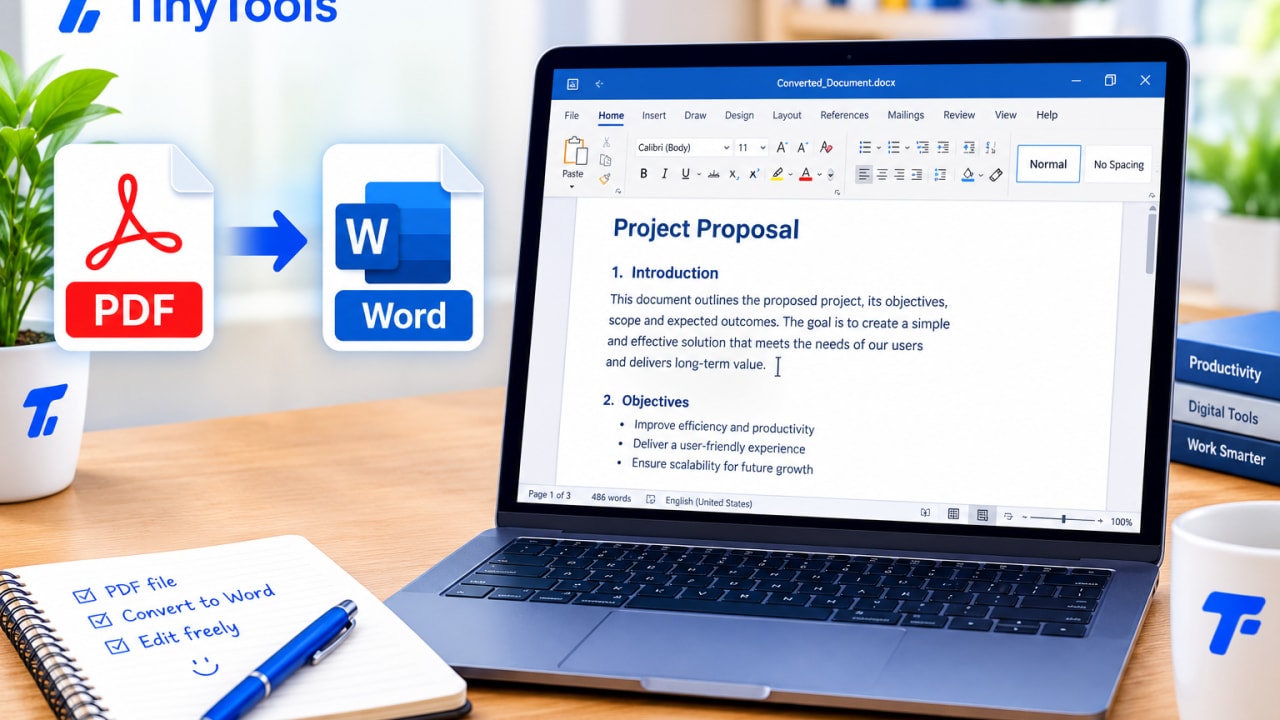
To convert a PDF to Word, run it through a PDF to Word converter that reads the text in the PDF and rebuilds it as an editable .docx file. You get your words exactly right, with headings, lists, bold and italic preserved, laid out to flow as you type. With TinyTools the conversion happens in your browser, so the document never leaves your device.
Knowing what a PDF actually contains explains what converts well, what does not, and why scanned PDFs are a different problem altogether.
Why PDFs are hard to edit
A PDF does not really contain paragraphs. It contains letters placed at exact positions on a page. Where one line ends, where a paragraph starts and which line is a heading are all things your eye works out; the file itself mostly discarded that structure when it was made.
That is why trying to edit a PDF directly feels so awkward. Changing one word does not push the rest of the sentence along, because nothing in the file knows the words belong to the same sentence.
A Word document is the opposite. Text flows: type a word and everything after it moves. Converting PDF to Word means rebuilding that flow from the positions of the letters.
What converts well, and what does not
TinyTools reads the text layer of your PDF and rebuilds the structure from the geometry: baselines, gaps, indents and font sizes.
What comes through:
- Every word, exactly as written
- Paragraphs, rebuilt from line spacing
- Headings, recognised from their size
- Bulleted and numbered lists
- Bold and italic emphasis
- Two-column layouts, such as academic papers, unwrapped into a single reading order (you will see a note when this has happened, so you can check the sections follow on correctly)
What does not:
- Exact layout. Line breaks and page breaks will differ from the PDF, because the Word file is built to reflow as you edit rather than to imitate the page.
- Tables as tables. Text inside a table comes through as text, but not as a grid. A PDF gives no reliable signal about where cell boundaries are, and guessing produces wrong tables.
- Images. Pictures are not carried over.
The tool is built around getting the text right rather than approximating everything badly. For most editing jobs, such as updating a CV, reusing a report or correcting a letter, the text is what you need.
Scanned PDFs need OCR
If your PDF came from a scanner or a phone camera, each page is a photograph of a page. There is no text in it to extract, only pixels that look like letters.
Getting text out of a scan requires optical character recognition (OCR), which reads letter shapes from the image. TinyTools PDF to Word does not do OCR. If you give it a scan, it tells you so rather than handing you an empty document.
A quick test: open the PDF and try to select a word with your cursor or finger. If you can highlight individual words, there is a text layer and conversion will work. If the whole page highlights as one block, or nothing highlights, it is probably a scan.
How to convert PDF to Word with TinyTools
The converter below turns a text-based PDF into a .docx without uploading it anywhere.
- Drag your PDF into the box, or click to choose it from your device.
- Click convert. The text is read page by page and grouped back into paragraphs, headings and lists.
- Download the .docx file.
- Open it in Word, Google Docs, LibreOffice Writer, Pages or any modern word processor and start editing.
Tidying up after conversion
A few minutes of checking makes the converted document feel like it was written in Word to begin with.
Check the headings
Scroll through and confirm the headings were recognised. If your word processor has a navigation or outline pane, it shows the headings at a glance.
Rebuild any tables
Where the PDF had a table, you will find its contents as text. Insert a table in your word processor and paste the values into it. For small tables this is quick; for large ones, consider whether you need the table editable at all.
Re-add images
Add any logos, photos or charts you need from their original files. If you only have the PDF, PDF to PNG can export a page as a sharp image that you can crop and insert.
Check two-column documents
If the tool noted that it unwrapped columns, read across the joins to make sure each section continues where it should.
When not to convert
Sometimes conversion is the wrong tool:
- You only need to change the page order or remove pages. Use Split PDF and Merge PDF instead; they keep the layout exactly.
- You need the layout preserved precisely. A certificate or designed flyer will not survive the move to a flowing document. Keep the PDF.
- You only need to copy a paragraph. Selecting and copying from the PDF may be quicker.
Once you have finished editing, you can turn the document back into a PDF with Word to PDF. Our guide to converting Word to PDF without Microsoft Office explains what to expect from fonts.
Common mistakes to avoid
- Converting a scan and expecting text. Check whether the PDF has selectable text first.
- Expecting a pixel-perfect copy. The Word file is for editing, not for reproducing the page.
- Editing the converted file and losing the original. Keep the PDF in case you need to compare.
- Converting confidential files on sites that upload them. Contracts and payslips deserve care. TinyTools keeps the file on your device, so nothing is sent to a server.
Frequently asked questions
Will the Word document look exactly like the PDF?
- A PDF is a fixed page and a Word document flows. This tool keeps your words, headings, lists, bold and italic, but line and page breaks will differ. If you need the exact layout, keep the PDF itself.
Why did my scanned PDF not convert?
A scanned PDF has no text in it, only images of pages. Extracting text from a scan needs OCR, which this tool does not do.
Can I edit a PDF in Word on my phone?
You can convert the PDF in your phone's browser, then open the .docx in any word processor app installed on your phone.
Does it keep tables and images?
Table text comes through as text but not as a table, and images are not carried over. The tool focuses on getting the text exactly right.
Is my PDF uploaded anywhere?
- It is read and converted entirely inside your browser and disappears from memory when you close or reload the page.
Have a PDF you need to edit? Open PDF to Word and get an editable document in seconds.
Every tool here is free
51 tools for PDFs, images and video, all running in your browser. Create a free account to keep your recent tools on every device.
Keep reading
 PDFConvert Word to PDF Without Microsoft OfficeConvert Word to PDF without Microsoft Office, free in your browser. Keeps headings, lists, tables and images, with honest notes on fonts and .doc files.19 October 2026 · 6 min read
 PDFHow to Convert PDF Pages to JPG ImagesConvert PDF to JPG images page by page, free in your browser. Choose the right resolution for screen or print, and share pages anywhere a PDF won't go.10 October 2026 · 5 min read
 PDFHow to Compress a PDF to a Smaller Size (Free)Compress a PDF to a smaller size for free in your browser. Learn which compression level to pick, what actually shrinks, and why nothing is uploaded.7 October 2026 · 6 min read