
How to Convert a Video to MP3 Audio
By TinyTools Team · · 6 min read
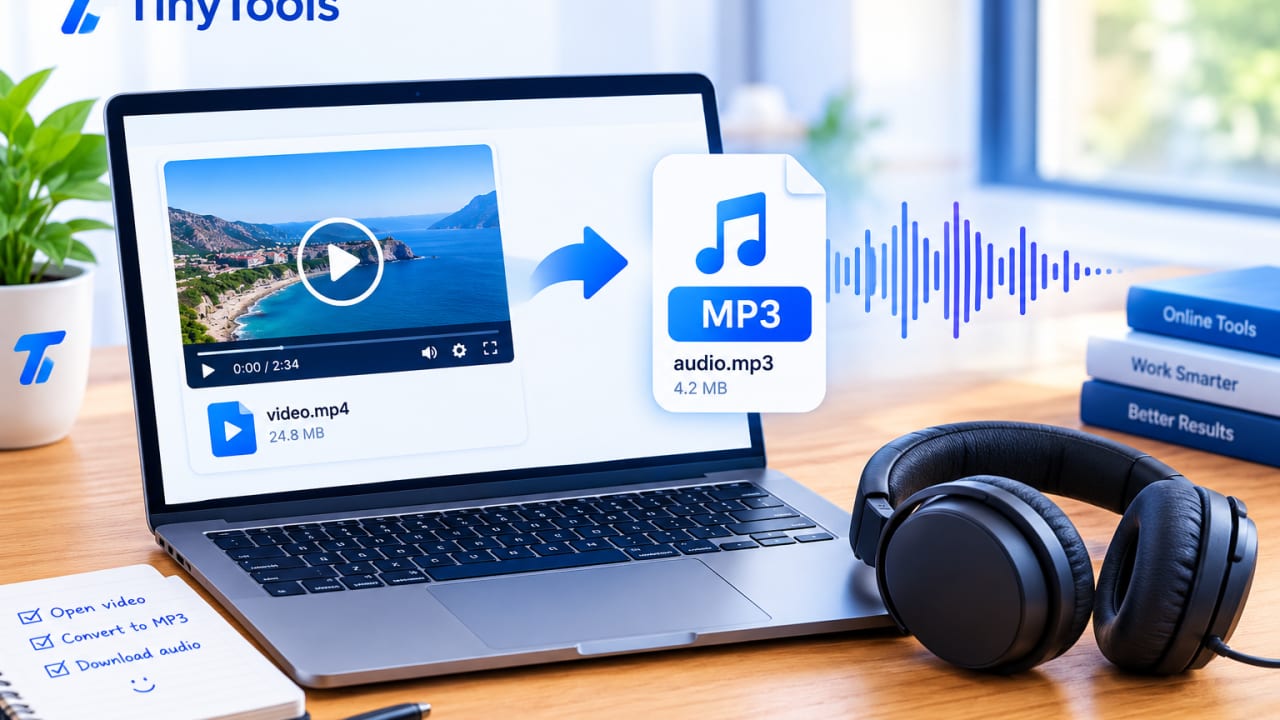
To convert a video to MP3, you extract its audio track and re-encode it as an MP3 file, discarding the picture. With a browser-based video to MP3 converter, you add the video file, choose a quality and download the audio, usually in well under a minute, without installing anything or uploading your file.
People do this all the time for good reasons: a lecture they want to listen to on the move, a recorded interview to transcribe, a church sermon or a voice note someone sent as a video. The picture adds nothing in those cases and makes the file many times larger.
Why convert video to MP3?
Much smaller files. The video track is usually most of a file's size. Once it is gone, a recording that took hundreds of megabytes can come down to a small fraction of that, which matters when you are short on phone storage or paying for data.
Plays anywhere. MP3 is the most widely supported audio format there is. Phones, car stereos, laptops, smart speakers and most podcast and music apps open it without trouble.
Easier to work with. Transcription tools, audio editors and many upload forms want audio, not video. Pulling the sound out first saves a step.
Listen with the screen off. On many phones, a video stops when you lock the screen or switch apps. An MP3 in your music or podcast app keeps playing.
Good uses, and one important caution
Common, sensible uses include:
- recordings of your own lectures, meetings, interviews and video calls
- a talk, sermon or event you recorded and want to share as audio
- voice memos and messages that arrived as video files
- the soundtrack of your own videos, for editing separately
Only convert content you have the right to use. Extracting the audio from someone else's music video or film does not change who owns it. And note that this kind of tool works on video files you already have on your device; it does not download videos from web links.
How to convert a video to MP3 with TinyTools
The TinyTools Video to MP3 tool does the whole extraction in your browser, using your device's own media decoders and a real MP3 encoder running inside the page.
- Add your video. Drag in an MP4, MOV, WebM or MKV file, or click to choose one. Files up to 500 MB are accepted.
- Pick a quality. Balanced (128 kbps) suits speech and most music. High (192 kbps) is worth it for recordings you plan to edit or publish. Small (96 kbps) is enough for speech when you want the smallest file.
- Extract the MP3. Your device decodes the audio and encodes it as MP3. Because only the audio is processed, it is far quicker than converting the video itself; a one-hour recording typically finishes in well under a minute on a normal laptop.
- Save the file. Download the MP3 and play it anywhere.
Nothing is uploaded. The file stays on your device and is cleared from memory when you close or reload the page.
Choosing the right quality
The audio inside a video is already compressed, usually as AAC or Opus. Converting it to MP3 compresses it a second time, so there is always a little loss. How much that matters depends on what you are doing with the result.
For speech, the difference between these is very hard to hear. For music you care about, choose High. Going higher than the original recording's quality does not help, because conversion cannot add detail that was not there.
Tips and common mistakes
Trim the video first if you only need part of it. If you only want five minutes of a two-hour recording, cut that section with Trim Video, then extract the audio. It is quicker and gives you a tidier file.
Do not convert the MP3 back and forth. Each conversion between compressed formats loses a little. Keep the original video and extract from it whenever you need a fresh copy.
Check the video actually has sound. Some screen recordings and phone videos are silent. The tool checks before it starts and tells you, rather than handing back an empty file.
If the audio track will not decode, try Chrome. A few files carry an audio format that a particular browser cannot read. Chrome supports the widest range.
Want the silent video too? If you need both the audio and a version of the video without sound, extract the MP3 here first, then use Remove Audio from Video on the original. Our guide to removing audio from a video explains when that is useful.
Alternatives and limits
If you need a format other than MP3, or want to convert the video itself to MP4 or WebM, the Video Converter handles those and can also produce MP3.
The tool relies on WebCodecs, a browser feature available in Chrome, Edge, Safari 16.4 and later, and recent Firefox. On iPhone and iPad all browsers use Safari's engine, so updating iOS is the fix if your browser is not supported. Very large files depend on your device's memory; a desktop computer handles long recordings more comfortably than a phone.
Wondering whether it is safe to run files through an online converter at all? Our article on whether online file converters are safe explains what to look for.
Frequently asked questions
How do I convert MP4 to MP3 for free?
Open a browser-based converter such as TinyTools Video to MP3, add your MP4 file, choose a quality and download the MP3. There is no charge, no sign-up and no watermark, and the file is not uploaded.
Does converting video to MP3 lose quality?
A little, because the audio is compressed a second time. It is inaudible for speech and fine for casual listening. Choose High (192 kbps) if you plan to edit or publish the recording.
Can I convert a video to MP3 on my phone?
Yes, if your mobile browser supports WebCodecs. Current Chrome on Android and Safari on recent versions of iOS both do. Shorter recordings are more comfortable on a phone because the work happens in its memory.
Is the MP3 a real MP3 file?
Yes. It is encoded with LAME, the reference MP3 encoder, running inside the page. Browsers cannot create MP3s on their own, so the encoder is downloaded the first time you use the tool. The result plays on anything that plays MP3.
Can I paste a YouTube link to get the MP3?
- The tool converts video files that are already on your device. It does not fetch or download videos from links.
Have a recording you only need to hear? Open Video to MP3 and you will have the audio in moments, without your file leaving your device.
Every tool here is free
51 tools for PDFs, images and video, all running in your browser. Create a free account to keep your recent tools on every device.
Keep reading
 VideoCrop a Video to Vertical for Reels and TikTokCrop a video to vertical 9:16 for Reels, TikTok and Shorts, or to square and 4:5 for feed posts. Free, in your browser, with no upload and no black bars.19 October 2026 · 6 min read
 VideoHow to Convert MOV to MP4 (Free, No Upload)Convert MOV to MP4 for free in your browser. Make iPhone and QuickTime videos play on Windows, Android, smart TVs and websites, without uploading the file.10 October 2026 · 6 min read
 VideoHow to Compress a Video for WhatsAppCompress a video for WhatsApp so it sends fast, stays sharp and uses less data. A free, step-by-step guide that works in your browser with no upload.7 October 2026 · 6 min read